Scenes and overlays for OBS in the MidgardPlus colours. Fill in your details below, copy a link, and add it to OBS as a Browser source. You can also see every piece running at once.
Whole OBS setup in one go
Don't fancy adding sources one by one? Download a ready scene collection with all seven scenes, Valheim capture, webcam, mic, Discord (starts muted) and game audio, and import it into OBS. It uses the details you fill in below. Connect MidgardPlus Live first if you want our alerts and chat in it too.
Set up in OBS
- In OBS, go to Sources and click +, then pick Browser.
- Leave Local file unticked and paste the URL you copied from this page.
- Set Width to 1920 and Height to 1080, or the size listed next to the overlay (the ticker is 1920 x 64, the frames are the size of what goes inside plus 28).
- Tick Refresh browser when scene becomes active.
- Clear the Custom CSS box so it is empty.
- Click OK. Transparent overlays need nothing else.
You never need to refresh a source by hand. Every page checks the site again on its own: mod version and mead-givers every five minutes, Twitch info every minute. When the kit itself is updated on the site, running sources notice within five minutes and reload themselves with your settings kept.
Your details
Everything is optional. Empty fields keep the normal MidgardPlus text. If you give a password but do not tick the box, the scenes say "Password: ask in chat". Your details are kept in this browser only and go into the links as settings. Twitch avatar, stream title, game, follower count and live time come from decapi.me, a free public service, so no Twitch login or key is needed.
Scenes
Overlays
MidgardPlus Live (easiest)
Our own alerts and chat, straight from Twitch. No Streamlabs or StreamElements account, nothing to set up over there.
- Hit Connect with Twitch and say yes on Twitch.
- Pick what shows, then copy your alerts link and your chat link.
- In OBS add each one as a Browser source: alerts at 1920 x 1080 on top of everything, chat at 448 x 668.
Covers Twitch follows, subs, resubs, gifted subs and gift bombs, cheers, raids and your chat. Tips and donations don't go through Twitch, so for those you still need Streamlabs, StreamElements or Ko-fi. If you run one of those next to this, turn off its follow, sub, cheer and raid alerts so nothing plays twice. The links run out after a while (the connect page shows the date), then you connect again and paste the new ones in.
Streamlabs alerts (alternative)
Two ways to get MidgardPlus alerts from Streamlabs. Pick one, not both, or every alert plays twice.
Way 1: our alerts overlay
- On streamlabs.com go to Settings, then API Settings, then API Tokens, and copy Your Socket API Token.
- Paste it in the box below and hit Copy.
- In OBS add a Browser source with that link, 1920 x 1080, on top of your game and webcam.
- Want to line it up first? Use the test link. It plays fake alerts every few seconds and doesn't touch Streamlabs.
- If you also have a Streamlabs Alert Box in OBS, remove it or turn those alerts off, so you don't get doubles.
Treat this token like a password. Anyone with it can read your Streamlabs alerts. It only lives in the link you copy into OBS, after the #, and that part never gets sent to our site. It isn't saved on this page either. Don't show this page or your OBS source settings on stream, and if it ever leaks, make a new token in Streamlabs.
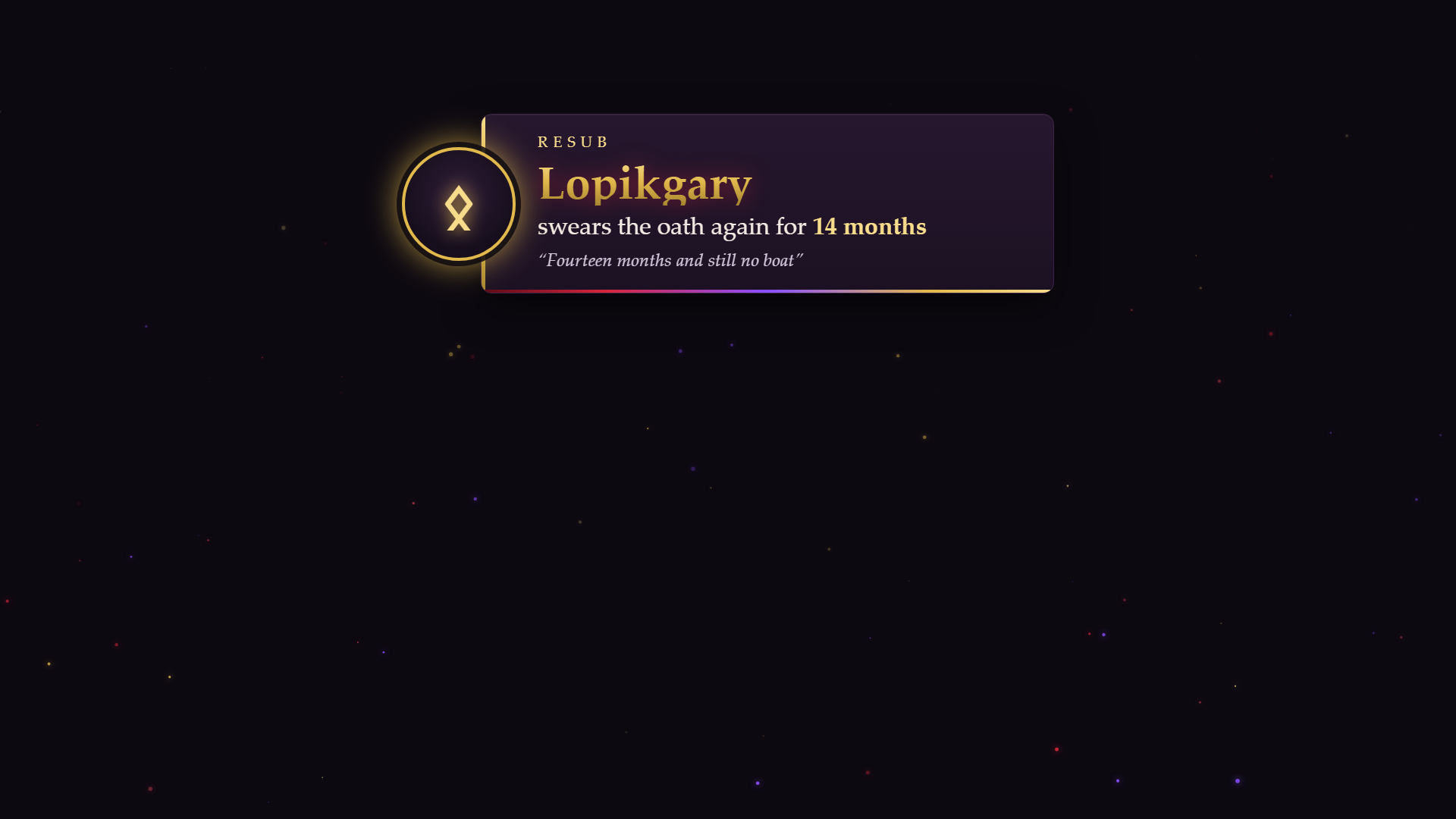
Alerts from Streamlabs1920 x 1080
Follows, subs, resubs, gifted subs, bits, raids and donations, one at a time, with the viewer's message.
Test link, safe to show anywhere:
Settings: seconds=7 on screen, top=120 pixels from the top, test=raid to test just one kind, status=1 shows a small connected or not connected tag while you set it up.
Way 2: paste into Streamlabs
- Download the zip below, or the files for just the alerts you want.
- On streamlabs.com open your Alert Box and pick an alert type, for example Follow.
- Turn on Enable Custom HTML/CSS.
- Paste
alert.htmlinto the HTML tab,alert.cssinto CSS andalert.jsinto JS, replacing what's there. - Set the alert duration to 8 seconds, save, and hit test. Each folder's README.txt has the details and a sound idea.
StreamElements widgets (alternative)
On StreamElements instead? Same MidgardPlus look, as custom widgets you paste into your overlay.
Pick one for alerts: Streamlabs or StreamElements, not both. If both are running, every follow, sub and raid plays twice. The latest, goal and chat widgets are fine next to anything. The kit's own scenes and overlays above work with either.
- Download the zip below, or just the files for the widgets you want.
- On streamelements.com open My Overlays and open your overlay.
- Click + (Add widget), pick Static / Custom, then Custom widget.
- Select the widget, and under Settings click Open Editor.
- Paste
widget.htmlinto HTML,widget.cssinto CSS,widget.jsinto JS andfields.jsoninto FIELDS, replacing what's there. - Click Done, then Save. Your settings show up in the left panel. Test with the test button or Emulate. Each folder's README.txt has the details.
Downloads
Twitch panel images, 320 x 100. Upload them under your channel's About panels. The words can be changed in panels.html.
Alert design for other alert services such as Streamer.bot. Paste both files into a custom alert and swap {name}, {amount} and {message} for your service's variables. On Streamlabs, use the Streamlabs alerts section instead, and on StreamElements the StreamElements widgets.
All the details and every setting are in the README. See everything live in the preview gallery.